Whether you’re typing an email, searching online, or writing a blog post, the keyboard is your gateway to getting things done on your computer. Learning how to use a keyboard effectively isn’t just about speed — it’s about comfort, confidence, and knowing the little tricks that make a big difference.
In this guide, I’ll walk through how to understand your keyboard, use it comfortably, and gradually build skill — all at a pace that suits you.
Why Your Keyboard Matters More Than You Think
To someone new to the digital world, a keyboard might just look like a jumble of letters and symbols. But once you get to know it, it becomes a tool that helps you communicate clearly and work smoothly.
Every time you type a website address, reply to a message, or enter your details on a form, you’re using this tool. So it’s worth taking the time to learn how to use a keyboard effectively — not just for productivity, but for peace of mind.
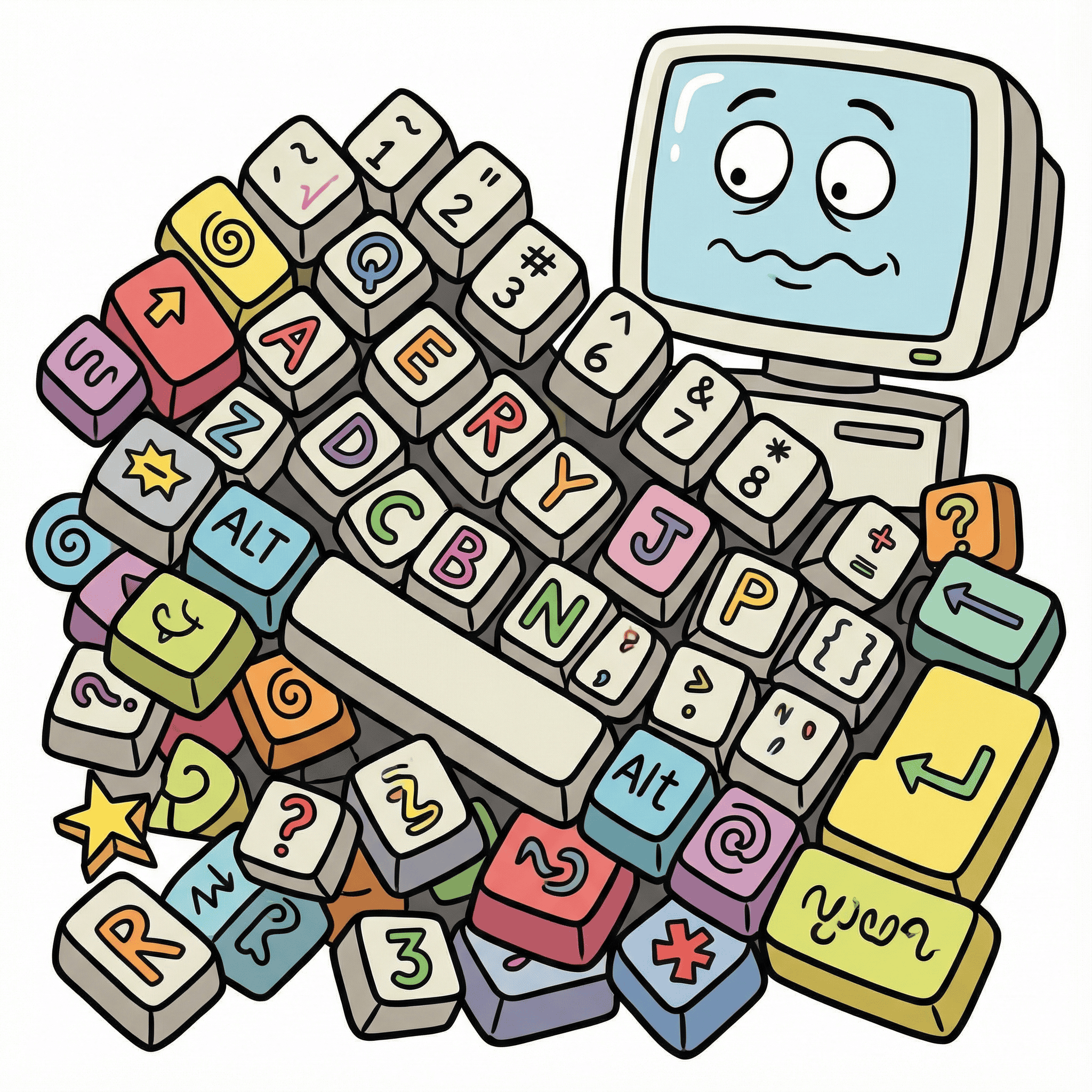
Layout Basics: Getting Comfortable With The Keys
Let’s start with what you’re looking at:
-
Alphanumeric keys – These are your letters, numbers, and punctuation marks.
-
Function keys – At the top (F1–F12), these carry out specific actions.
-
Control keys – Including Shift, Ctrl (Control), and Alt — used for shortcuts.
-
Navigation keys – Arrows, Home, End, Page Up and Page Down help you move around a document.
-
Command or Windows key – Depending on your device, this helps open menus or features.
If you’re feeling unsure, just take a few moments to press and explore. Most keys don’t cause any harm when tapped — and confidence grows through gentle repetition.
How to Use a Keyboard Effectively: Posture and Positioning
Typing comfortably starts with how you sit and how you position your hands.
-
Sit up straight with both feet on the floor
-
Keep your wrists relaxed, not bent
-
Place your fingers gently on the “home row” — that’s A–S–D–F (left hand) and J–K–L–; (right hand)
-
Try not to hover too high or press too hard — a light touch works best
Posture helps prevent aching shoulders or wrists, especially during longer sessions. It’s one of the most overlooked parts of learning how to use a keyboard effectively, but it makes a huge difference.
Handy Shortcuts: Save Time, Avoid Frustration
As you get more confident, keyboard shortcuts can help you move around faster without reaching for the mouse. Here are a few beginner favourites:
-
Ctrl + C – Copy
-
Ctrl + V – Paste
-
Ctrl + Z – Undo
-
Ctrl + P – Print
-
Ctrl + S – Save
On a Mac, use Command instead of Ctrl.
You don’t have to memorise them all at once. Start with one or two and build gradually — that’s the easiest way to learn how to use a keyboard effectively without overwhelm.
Build Confidence with Practice
The best way to improve is by practising in short, calm sessions. There are some excellent free websites designed specifically for beginners:
-
BBC Dance Mat Typing– a cheerful, beginner-friendly typing game from the BBC
-
TypingClub– a simple tool with lessons you can repeat at your own pace
Even 10 minutes a few times a week will help you feel more at home with the keyboard.
Troubleshooting Common Issues
If something doesn’t feel right, it’s okay to pause and check:
-
Sticky keys – Try gently cleaning around the key with a soft brush or cloth.
-
Nothing appears when typing – Make sure your cursor is in the right place (in a text box or document).
-
Symbols not working – You may have accidentally hit the Caps Lock or Num Lock keys. Tap again to toggle them off.
Knowing how to spot and fix these little hiccups is a quiet part of learning how to use a keyboard effectively — and it builds confidence more than you’d think.
And Finally…
Did you learn to type later in life? Or are you just getting started?
Whether you’re tapping one finger at a time or starting to fly across the keys, your progress is real.
Let me know in the comments — I’d love to hear about your first steps with the keyboard, and what still feels unclear.
This is a space where you can take your time.
Here’s a little transparency:
My website contains affiliate links. This means if you click and make a purchase, I may receive a small commission. Don’t worry, there’s no extra cost to you. It’s a simple way you can support my mission to bring you quality content.