How to Get Started Online for Beginners

How to Get Started Online for Beginners

Introduction: How to Get Started Online for Beginners?

If you’ve ever asked yourself how to get started online?, you’re not alone. Maybe you’ve just bought a new laptop, or you’re ready to dip a toe into the online world—but the idea of routers, Wi-Fi, and mobile data feels like a foreign language. This guide is for you.

Let’s take a steady, clear look at how it all fits together. No jargon. No assumptions. Just one idea at a time.

What Is Wi-Fi?

Wi-Fi, short for Wireless Fidelity, is like invisible magic weaving through your home, allowing gadgets to communicate without messy wires. Developed in the late 1990s, Wi-Fi has quickly evolved from a neat gadget trick to a staple in modern living.

Our digital lifeline functions through radio waves, connecting devices to the internet via a Wi-Fi router. 
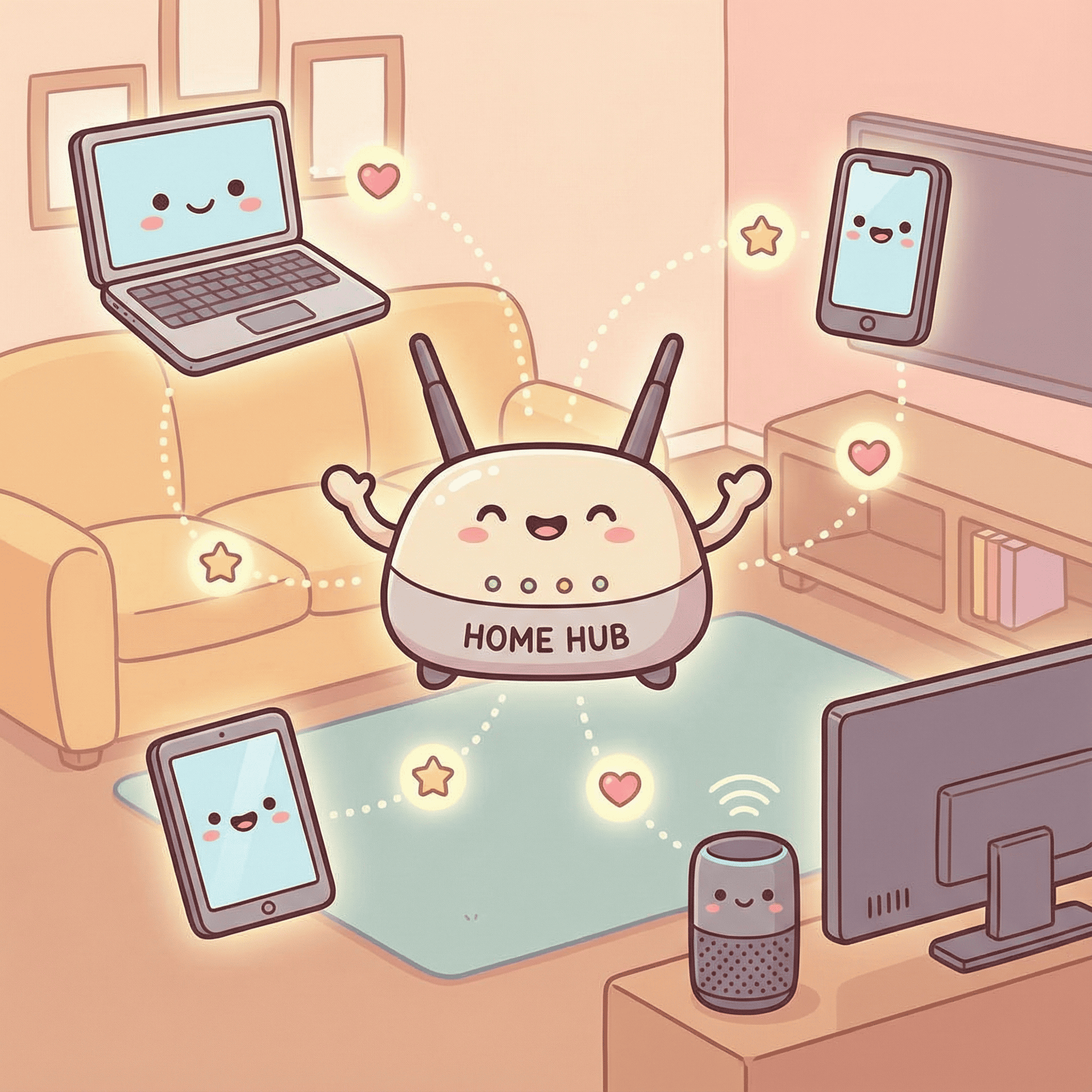
WIFI | How to get started online

These waves operate on two principal frequency bands: 2.4GHz and 5GHz. The 2.4GHz band covers a wider range but is prone to interference, especially if you’ve got a microwave in the kitchen or many walls in the house. The 5GHz, meanwhile, provides faster speeds ideal for streaming and gaming, but it doesn’t reach as far.  That is all a bit technical isn’t it but, in my opinion, as long as the Wi-Fi works I’m content!

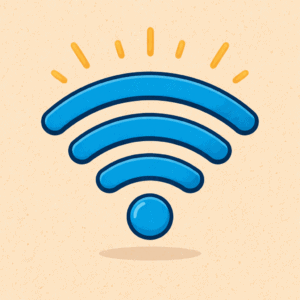
A common Wi-Fi myth is thinking having more Wi-Fi bars means faster internet. It’s not always the case! Those bars just indicate signal strength from the router, not internet speed itself.WiFi bars | How to get started online
How to Get Started Online? Connect with a Router

Routers are the unsung heroes of your home network. That small box tucked away near your telephone line is doing more than you might think. A router directs traffic—making sure information from the internet reaches your device quickly and safely.

What’s the difference between a modem and a router? The modem connects your home to the internet (it’s like the front door), and the router distributes that internet to your devices (like handing out the post).

Most routers come pre-set by your provider, but it’s worth personalising your setup. Rename your network to something memorable and add a secure password. If your signal struggles to reach certain rooms, a Wi-Fi extender can stretch your network’s range. 

Going Beyond Wi-Fi: Mobile Data in Plain English

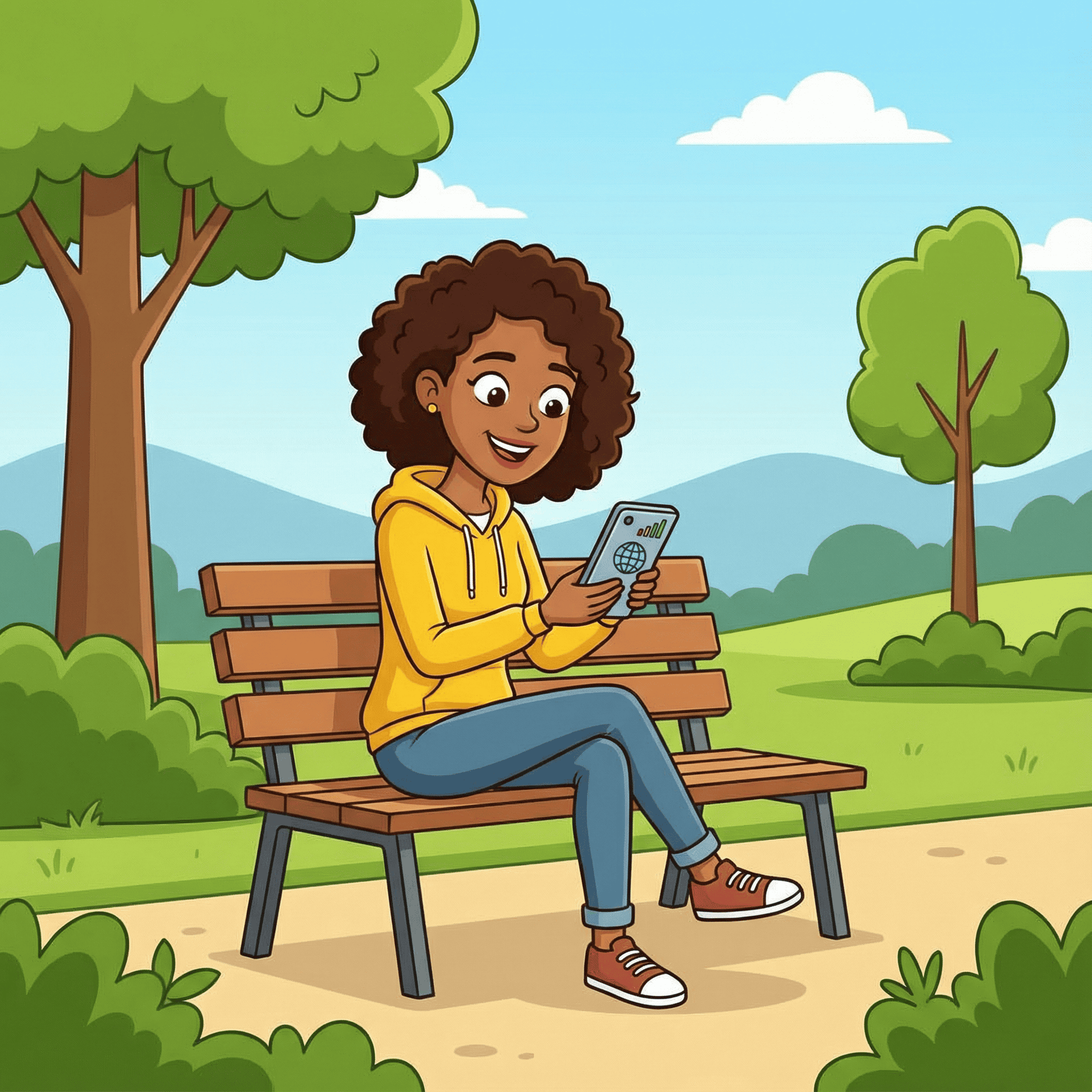
What happens when you’re not at home? That’s where mobile data comes in. Mobile data uses nearby phone masts to send and receive information over the internet—no wires or routers needed.

It’s ideal when you’re out and about. You can send emails, browse websites, and even join Zoom calls using mobile data. But be aware: it usually comes with a data cap. Using video streaming or social media can eat through it quickly, so switch back to Wi-Fi when you’re home.
mobile data | how to get started online

Common Questions When Learning How To Get Started Online

  • Why can’t I connect to Wi-Fi?

Try turning the router off and on. Still no luck? Check if other devices are connected. If none are, the issue may be with your internet provider.

  • Can I get online without Wi-Fi?

Yes. If you have a smartphone with mobile data, you can browse the internet without needing a home router.

  • How do I know if I’m using Wi-Fi or mobile data?

On most phones, you’ll see a small Wi-Fi icon when connected. If not, you may be using data—often shown as 4G, 5G, or LTE.

More Information

If you’d to learn some more about getting online have a look at the different websites below:

Getting Starting Online

Buying a Router

Using The Internet

And Finally…

Learning how to get started online is a journey, not a sprint. Everyone has a starting point, and if today you understand Wi-Fi a little better than yesterday—you’re already winning.

Have you had any moments of confusion or clarity with your Wi-Fi setup? I’d love to hear your stories, questions, or discoveries in the comments. This is a friendly place to explore together.

Here’s a little transparency: My website contains affiliate links. This means if you click and make a purchase, I may receive a small commission. Don’t worry, there’s no extra cost to you. It’s a simple way you can support my mission to bring you quality content.
What Is the Internet? A Calm, Clear Guide for Beginners

What Is the Internet? A Calm, Clear Guide for Beginners

The Internet. What on Earth is it? Let’s break it down.
Picture it as a massive, invisible web connecting people all over the globe. It’s not magic—though it might feel that way at first.

At its heart, the Internet is simply a vast network of computers that share information. It’s like having a group of very chatty machines passing notes at high speed — sending emails, loading websites, sharing videos and much more.

If you’ve ever felt unsure about what the Internet actually is, you’re not alone — and you’re not too late to understand it.

A Very Brief History Of The Internet: From Wires to Websites

Back in the 1960s, researchers and the military wanted a way to let computers talk to each other across long distances. They created ARPANET — a sturdy, basic version of what we now call the Internet.

Fast forward to 1989, and Tim Berners-Lee invented the World Wide Web, which made the Internet more accessible to everyday users. Suddenly, it wasn’t just scientists passing files around. All of a sudden it became possible for you to click, search, and browse — and the rest is history.

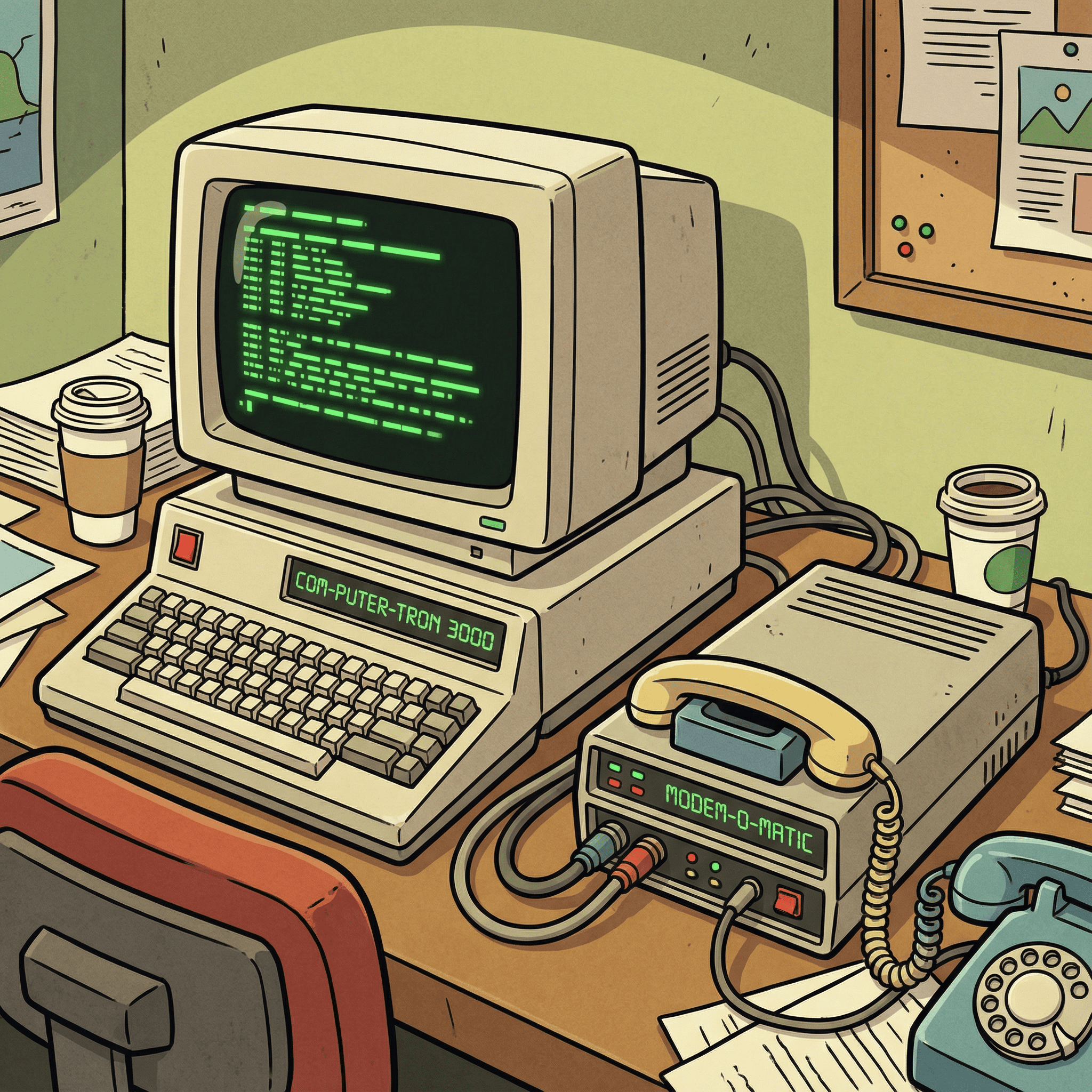
old computer and modem | What is the internet

So, when we ask “what is the internet?” we’re also asking: how did it become the tool we rely on for everything from finding recipes to running businesses?

How the Internet Works (Without the Jargon)

What happens when you type in a website and hit ‘Enter’?

Think of your device (laptop, tablet, or phone) as a client asking a question. That question gets sent to a server — a big, powerful computer somewhere in the world — which sends back the answer in the form of a website, video, or email.

This whole journey happens in seconds, thanks to:

  • Routers – digital traffic controllers

  • IP Addresses – like postal addresses for your device

  • Protocols – rules that help computers understand each other

It’s a bit like sending a postcard — only it arrives almost instantly, even if it travelled halfway around the world.

And if you’ve heard the word broadband — that just means a fast, always-on internet connection (no dial-up tones needed!).

What Is the Internet Used For Today?

Most people don’t ask “what is the internet?” because they want technical details.
They ask it because they want to understand what it’s for — and how it can help them.

Here are just a few ways the Internet supports everyday life:

  • Learning – access to courses, videos, and how-to guides

  • Shopping – from groceries to gifts, without leaving home

  • Communication – emails, video calls, and instant messaging

  • Entertainment – streaming music, shows, and films

  • Services – banking, healthcare, bookings, and more.

Useful internet | What is the internet?

You don’t need to master all of this at once. Just knowing the possibilities is enough to spark curiosity — and maybe even motivation.

What Is the Internet Doing to Our World?

The Internet has quietly transformed almost everything:

  • Retail has shifted online

  • Education has moved into the home

  • Relationships can thrive across oceans

  • Culture, language, and ideas are shared more freely than ever before

This isn’t just about convenience. It’s about access. The Internet gives people the chance to learn, connect, and even start businesses — often for free.

If you’ve felt unsure about stepping into the digital world, just know: it’s meant for people like you. You belong here, and you don’t have to be techy to benefit from it.

More To Explore

If you’d like to find out more about the uses of the internet, these links may help.

These are safe, calm resources written with beginners in mind.

And Finally…

What surprised you most about the Internet? Was there a moment it finally “clicked” for you? Or maybe you’re still unsure about how to use it confidently?

Feel free to share in the comments, or reply to this post — I’d love to hear your thoughts, questions, or even frustrations.
No question is too small here. We’re all learning, step by step.

Here’s a little transparency: My website contains affiliate links. This means if you click and make a purchase, I may receive a small commission. Don’t worry, there’s no extra cost to you. It’s a simple way you can support my mission to bring you quality content.

How To Use A Keyboard Effectively

How To Use A Keyboard Effectively

Whether you’re typing an email, searching online, or writing a blog post, the keyboard is your gateway to getting things done on your computer. Learning how to use a keyboard effectively isn’t just about speed — it’s about comfort, confidence, and knowing the little tricks that make a big difference.

In this guide, I’ll walk through how to understand your keyboard, use it comfortably, and gradually build skill — all at a pace that suits you.

Why Your Keyboard Matters More Than You Think

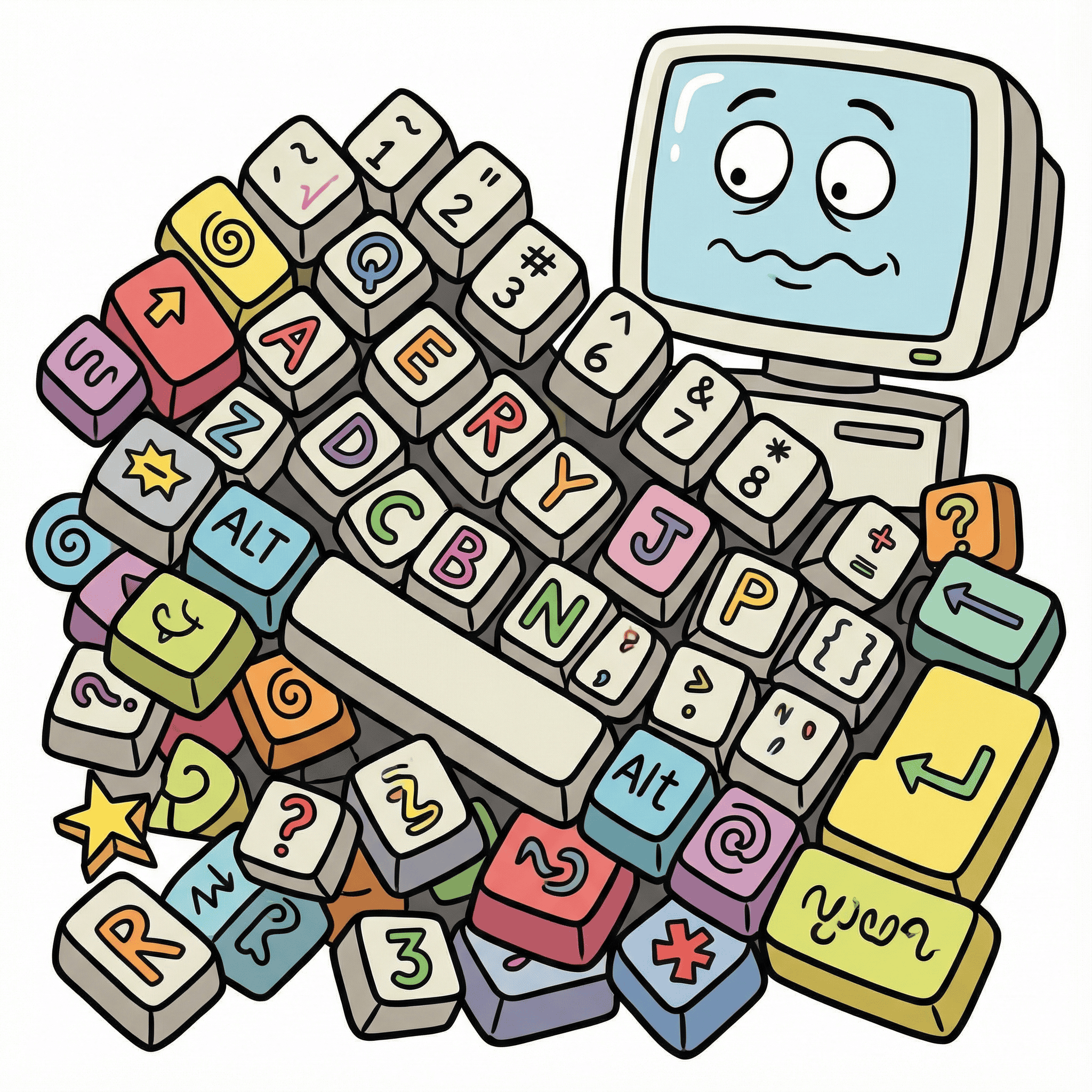
To someone new to the digital world, a keyboard might just look like a jumble of letters and symbols. But once you get to know it, it becomes a tool that helps you communicate clearly and work smoothly.

Every time you type a website address, reply to a message, or enter your details on a form, you’re using this tool. So it’s worth taking the time to learn how to use a keyboard effectively — not just for productivity, but for peace of mind.

jumbled keyboard | How to use a keyboard effectively

Layout Basics: Getting Comfortable With The Keys

Let’s start with what you’re looking at:

  • Alphanumeric keys – These are your letters, numbers, and punctuation marks.

  • Function keys – At the top (F1–F12), these carry out specific actions.

  • Control keys – Including Shift, Ctrl (Control), and Alt — used for shortcuts.

  • Navigation keys – Arrows, Home, End, Page Up and Page Down help you move around a document.

  • Command or Windows key – Depending on your device, this helps open menus or features.

If you’re feeling unsure, just take a few moments to press and explore. Most keys don’t cause any harm when tapped — and confidence grows through gentle repetition.

How to Use a Keyboard Effectively: Posture and Positioning

Typing comfortably starts with how you sit and how you position your hands.

  • Sit up straight with both feet on the floor

  • Keep your wrists relaxed, not bent

  • Place your fingers gently on the “home row” — that’s A–S–D–F (left hand) and J–K–L–; (right hand)

  • Try not to hover too high or press too hard — a light touch works best

Posture helps prevent aching shoulders or wrists, especially during longer sessions. It’s one of the most overlooked parts of learning how to use a keyboard effectively, but it makes a huge difference.

Handy Shortcuts: Save Time, Avoid Frustration

As you get more confident, keyboard shortcuts can help you move around faster without reaching for the mouse. Here are a few beginner favourites:

  • Ctrl + C – Copy

  • Ctrl + V – Paste

  • Ctrl + Z – Undo

  • Ctrl + P – Print

  • Ctrl + S – Save

On a Mac, use Command instead of Ctrl.

You don’t have to memorise them all at once. Start with one or two and build gradually — that’s the easiest way to learn how to use a keyboard effectively without overwhelm.

Build Confidence with Practice

The best way to improve is by practising in short, calm sessions. There are some excellent free websites designed specifically for beginners:

  • BBC Dance Mat Typing– a cheerful, beginner-friendly typing game from the BBC

  • TypingClub– a simple tool with lessons you can repeat at your own pace

Even 10 minutes a few times a week will help you feel more at home with the keyboard.

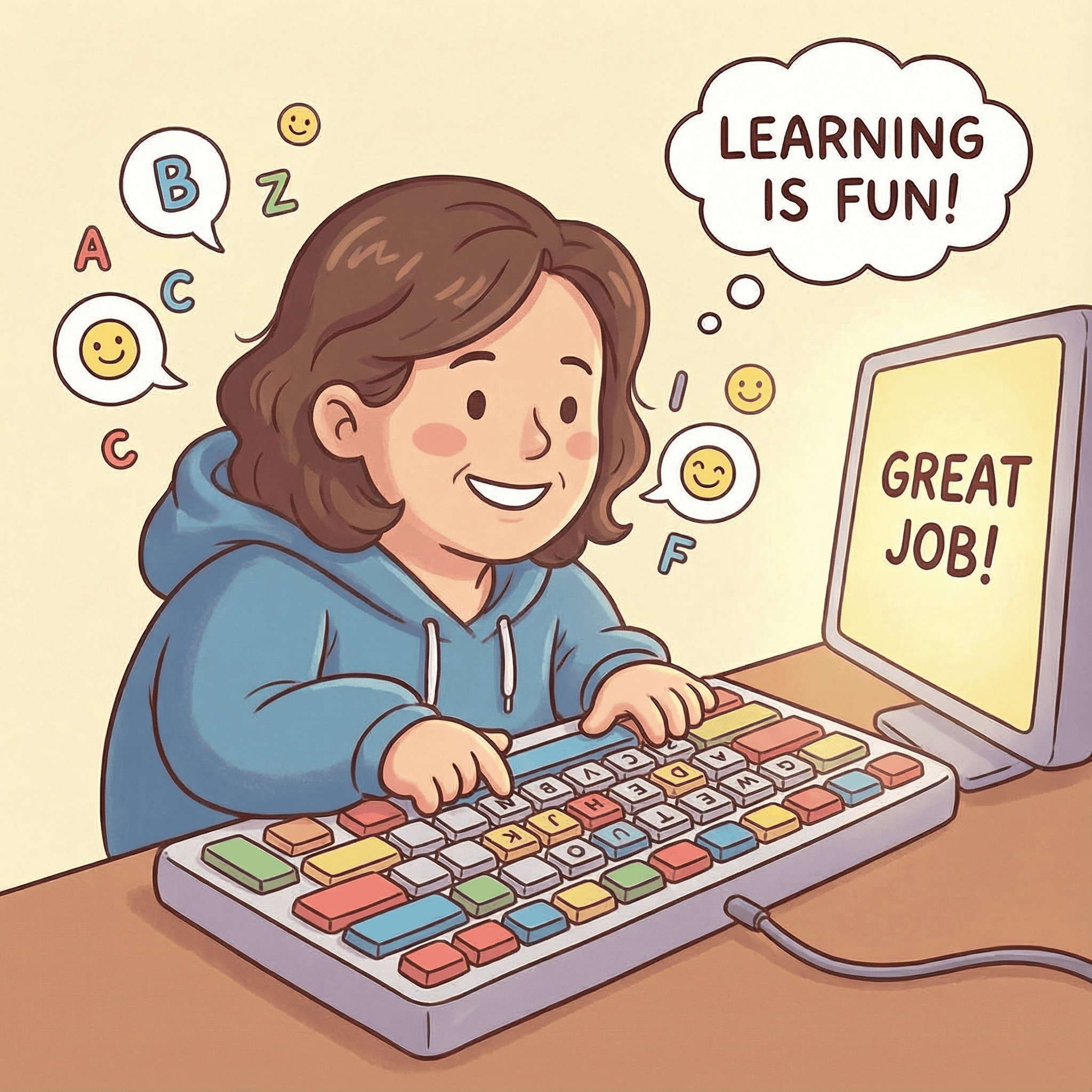
confident keyboard user| How to use a keyboard effectively

Troubleshooting Common Issues

If something doesn’t feel right, it’s okay to pause and check:

  • Sticky keys – Try gently cleaning around the key with a soft brush or cloth.

  • Nothing appears when typing – Make sure your cursor is in the right place (in a text box or document).

  • Symbols not working – You may have accidentally hit the Caps Lock or Num Lock keys. Tap again to toggle them off.

Knowing how to spot and fix these little hiccups is a quiet part of learning how to use a keyboard effectively — and it builds confidence more than you’d think.

And Finally…

Did you learn to type later in life? Or are you just getting started?
Whether you’re tapping one finger at a time or starting to fly across the keys, your progress is real.
Let me know in the comments — I’d love to hear about your first steps with the keyboard, and what still feels unclear.
This is a space where you can take your time.

Here’s a little transparency:

My website contains affiliate links. This means if you click and make a purchase, I may receive a small commission. Don’t worry, there’s no extra cost to you. It’s a simple way you can support my mission to bring you quality content.
How To Use A Computer Mouse – A Beginner’s Guide

How To Use A Computer Mouse – A Beginner’s Guide

Getting started with computers often begins with something small — the mouse.
It might look simple, but this little device is one of the most powerful tools for navigating your way online. If you’re new to the digital world, learning how to use a computer mouse is a perfect first step.

Let’s take it gently, one idea at a time.

Friendly mouse- How to use a computer mouse

Your Mouse: A Steering Wheel for the Online World

Think of the mouse as your steering wheel. It helps you move around websites, click on things, and open up all sorts of possibilities. For beginners, using a computer mouse might feel unfamiliar at first — but with a little practice, it soon becomes second nature.

A typical mouse has two main buttons — left and right — with a scroll wheel in between. You’ll mostly use the left button to click on items, select things, and open files or links. The right button brings up extra options — a handy shortcut menu when you want to do more.

The scroll wheel helps you move up and down long web pages without dragging the side bar. It’s quicker, easier, and makes browsing feel smooth.

Some mice have a small wheel in the middle, and some don’t — that’s okay. You don’t need it to get started.

How to Use a Computer Mouse: The Basics

Let’s walk through the everyday actions that make using a mouse easy:

  • Point and click – Move the mouse to guide the pointer on your screen. Click once with the left button to open or select something.


  • Right-click – Try this on a file or web page. It gives you a menu of options (like “copy” or “save”).


  • Double-click – Often used to open folders or programs on your desktop.


  • Scroll – Use the middle wheel to move up and down a page without dragging.


  • Drag and drop – Click and hold the left button, then move the mouse. This is useful for moving files or rearranging things on a page.


It’s worth spending a few minutes each day practising these small actions. Open a blank document, explore your desktop, or move files between folders — anything that builds comfort.

Mouse Problems? You’re Not Alone

When you’re learning how to use a computer mouse, a few hiccups are completely normal.

Common problems include:

  • The mouse moving too fast or too slowly
    → This can be adjusted in your computer’s settings under “Mouse Sensitivity”

  • The pointer not moving at all
    → Check if the mouse is connected or has working batteries

  • The scroll not responding
    → Try gently cleaning around the wheel or restarting your computer

Troubleshooting these small issues is part of building confidence. And remember: even seasoned users run into them too!

mouse running away- How to use a computer mouse

Subtle Clues from the Cursor

When you move your mouse around, you’ll notice the pointer changes shape depending on what it’s hovering over:

  • A pointing hand means you’re over a clickable link

  • A vertical line shows where you can start typing

  • A spinning circle or hourglass means the computer’s thinking

Learning what these mean helps you feel more in control and less unsure about what’s happening on screen.

How to Use a Computer Mouse Comfortably

Holding your mouse in a relaxed way can make a big difference. Here are some gentle reminders:

  • Rest your hand lightly over the mouse, not too tight

  • Keep your wrist straight, and try to move from the elbow if using it for long periods

  • Use a mouse mat if the surface feels uncomfortable or if the pointer is jumpy

Taking care of posture — even for your hand — helps prevent strain and makes using your computer feel more natural.

Getting Confident Takes Time (And That’s Fine)

If you’re just beginning your online journey, learning how to use a computer mouse is more than a skill — it’s a confidence boost.

This little device opens doors to online shopping, email, creating documents, and even building a website one day. The mouse is your first real link to the digital world — and once you’re comfortable with it, everything else becomes a little easier.

And Finally…

What was your first experience with a computer mouse?
Did anything surprise you — or make you laugh when it didn’t go quite right?
Pop your thoughts in the comments or reply if you’d like more beginner guides like this.

We’re in no rush — just here to learn, step by step.

If you’re just getting started, you may find the Learn the Internet guides helpful.

Here’s a little transparency: My website contains affiliate links. This means if you click and make a purchase, I may receive a small commission. Don’t worry, there’s no extra cost to you. It’s a simple way you can support my mission to bring you quality content.
How to Use the Search Bar: A Gentle Beginner’s Guide

How to Use the Search Bar: A Gentle Beginner’s Guide

If you’re brand-new to being online, learning how to use the search bar can feel confusing — and that’s completely okay. Nobody starts out knowing how the internet works. Every confident computer user began right where you are: curious, unsure, and taking one small step at a time.

Have you ever wondered how people find things online, like gardening ideas or a lovely coffee shop nearby?
The answer is simple: they use the search bar, a small box on your screen that helps you ask questions and explore information.

Today, we’re going to learn how to use the search bar gently, calmly, and without rushing.

You don’t have to get everything right. You don’t need to be fast.
One curious click at a time is enough.

What Is the Search Bar?

Before we learn how to use the search bar, let’s understand what it is.

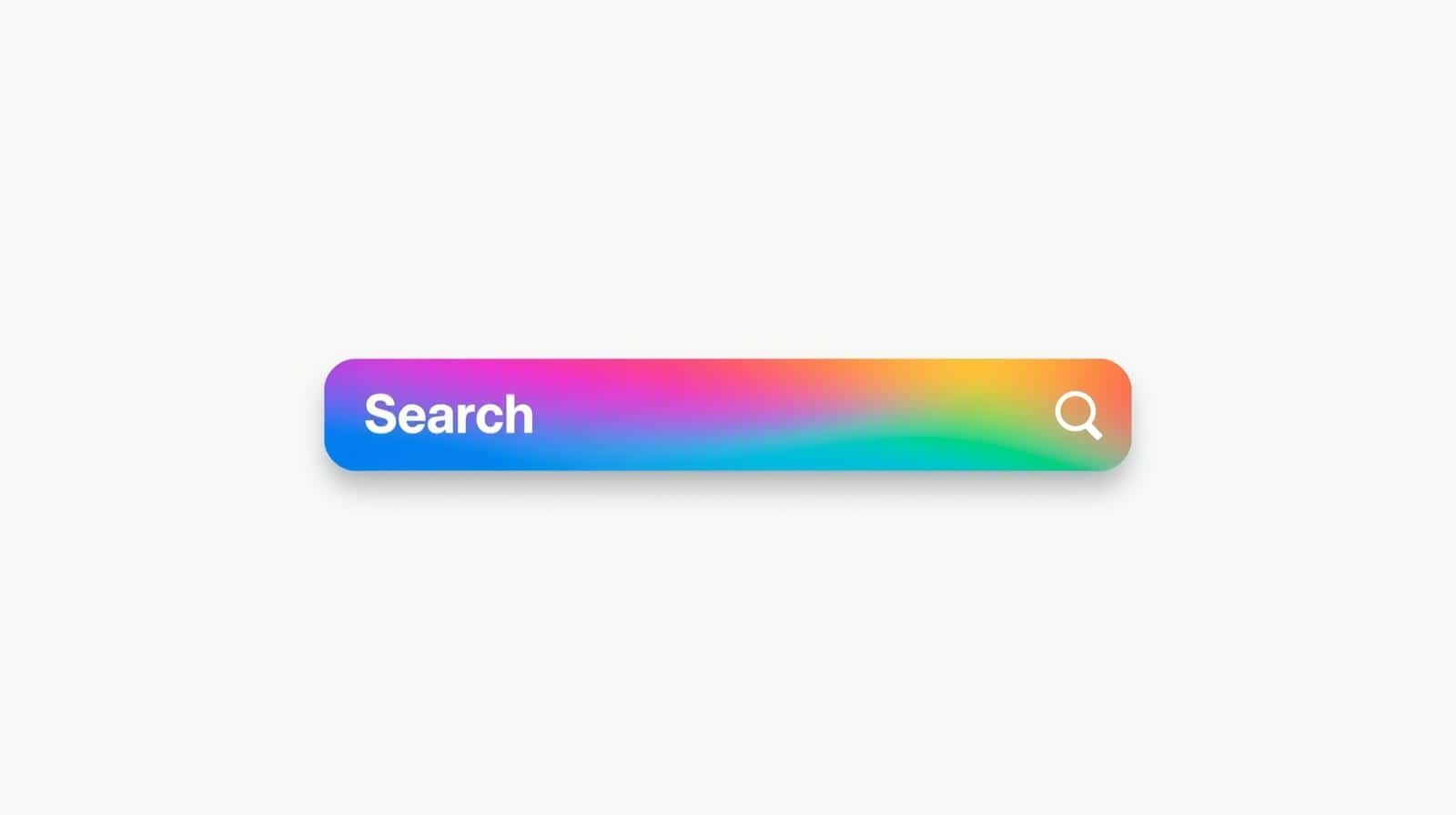
The search bar is a little box — usually at the top of your internet browser — where you type what you want to find. Think of it like asking a friendly librarian a question. Instead of whispering, you type your question or topic.

You might see text inside the box like:

  • Search…

  • Type here to search

It simply means: “Tell me what you’re looking for.”

That’s it — no secret tricks, no complicated steps.

A colourful search bar|how to use the search bar

How to Use the Search Bar (Step by Step)

Now we’ll learn how to use the search bar in the simplest way possible.

Step 1: Find the search bar

Look near the top of your screen. You’ll see a long rectangle or box.
That’s your search bar.

Step 2: Click inside it

Just one gentle click. You’ll see the cursor (the little blinking line) appear.

Step 3: Type something small and simple

Try something you enjoy or are curious about. For example:

easy gardening tips

You don’t need long sentences — just a few words works wonderfully.

Step 4: Search

Press Enter on your keyboard or click the magnifying glass icon
(the tiny picture that means “search”).

Congratulations — you just used the search bar!

Try It Yourself — You Can Do This

Let’s take a calm little practice moment.

When you feel ready, try this:

Click inside the search bar
Type: easy gardening tips 

Press Enter

Go on — you won’t break anything.
You’re simply asking the internet a question.

And remember: if you look at the results and think
“Wow, that’s a lot!” — that’s normal.

Pause. Breathe. Look at just one result.
Learning how to use the search bar is a gentle process.

Why Using the Search Bar Matters

Knowing how to use the search bar opens up a world of possibilities:

  • Finding recipes

  • Checking weather

  • Learning hobbies

  • Finding local places

  • Looking up health information (from trusted sites)

It’s like having a helpful guide right on your screen.

Helpful Beginner Resources

If you’d like to explore a little more, these beginner-friendly guides are helpful:

Top Tips For staying Secure Online

Google Search Basics (Official Guide)

How To Search Google With Confidence

Both are safe, simple, and written for ordinary users — not tech experts!

And Finally...

Whether you typed your first words today or simply read through quietly, you made progress.

Truly.

Learning how to use the search bar isn’t about speed — it’s about taking small steps that build confidence.

And you’re doing that beautifully.

Take your time.
Be gentle with yourself.
You’re learning — and learning is a brave thing.

When you’re ready, try typing something else into the search bar:

  • how to grow herbs indoors

  • best walks near me

  • simple soup recipes

Every little search makes you stronger online.

You’ve got this — one gentle click at a time.

Where Do I Start? Simple First Steps to Getting Online

Where Do I Start? Simple First Steps to Getting Online

If you’re brand new to the online world, you might be thinking: “Where do I even begin?”

You’re not alone — and you don’t need to feel embarrassed or overwhelmed. Everybody starts somewhere, and learning the internet is just like learning anything else in life: one small step at a time.

Today, we’re taking those first steps to getting online gently, clearly, and without any jargon. No rushing, no pressure. You don’t have to know everything at once — just enough to feel comfortable and curious.

Ready? Let’s take this journey together.

Why Getting Online Matters — In Everyday Life

The internet isn’t just for tech-experts or young people. It’s now part of everyday life, and being online can help you with things like:

  • Staying in touch with family and friends

  • Finding information (recipes, health advice, travel tips)

  • Shopping safely and comparing prices

  • Learning new skills and hobbies

  • Managing appointments and accounts

  • Starting a business or exploring new opportunities

Taking your first steps to getting online is not just about technology — it’s about confidence, independence, and staying connected in a fast-moving world.

And the good news? You can learn at your own pace.

First Steps to Getting Online: What You Actually Need

Before you begin, you only need three basic things:

  1. A device — like a laptop, desktop, tablet, or smartphone

  2. An internet connection — usually broadband or Wi-Fi

  3. A web browser — like Chrome, Edge, Safari, or Firefox

That’s it. No fancy gadgets. No expensive setup.
Just simple tools that help you explore the digital world safely.

If you’re unsure which device to start with, here’s a gentle tip:
A laptop or computer is usually easier for beginners because the screen is bigger and typing feels simpler.

Simple first steps to getting online

Getting Comfortable With Your Web Browser

Think of your browser as your door to the internet. You open it to explore websites, search for information, and learn new things.

When you take your first steps to getting online, it’s helpful to get familiar with:

  • The address bar (where website names go)

  • The search bar (where you ask questions, like “how to make scones”)

  • The back button (your safety net — if you go somewhere by accident, just go back)

  • The tabs (to have more than one page open at once)

Take a moment here. Open your browser and try typing in:

bbc.co.uk


or

google.com


That’s your first real step — and you’ve already done it.

Learning to Search: Your Digital Superpower

A search engine like Google is where you type questions. Think of it like asking a helpful librarian who never sleeps.

Try simple searches to start, such as:

  • How to boil an egg

  • Weather in my area

  • Chair yoga for beginners

  • Local coffee shops

When learning your first steps to getting online, don’t worry about “getting it wrong.”
The internet is a place for experimenting and discovering — not perfection.

Digital super power

Staying Safe From the Beginning

Safety online matters — especially for beginners. Here are gentle safety habits to build from day one:

  • Don’t share personal info unless you trust the site

  • Use strong passwords (or a notebook to store them at first)

  • Look for the padlock symbol in the browser to know a site is secure

  • If something looks odd or too good to be true, pause before clicking

Online safety should feel empowering — not frightening. With a little awareness, you’re already protecting yourself.

If you’re curious to learn more about staying safe online, this beginner-friendly guide is excellent:
Get Safe Online

Taking Your Time Is Not a Weakness — It’s Wisdom

Some people seem to zip through technology like they were born with it. But your journey doesn’t need to look like theirs.

In fact, taking small, steady steps builds lasting confidence.

Here’s a gentle way to practice:

  1. Open your browser

  2. Search something you enjoy

  3. Click a link and read slowly

  4. Practice going back and forth between pages

Celebrate each tiny win. Every click is progress.

Next Steps When You’re Feeling Ready

As you take your first steps to getting online, you might soon want to explore:

  • Setting up an email address
  • Joining a beginner-friendly Facebook group
  • Learning how to watch videos on YouTube
  • Bookmarking favourite sites

And when you feel even braver — building your own website or online presence.
(Just imagine that!)

You’re Doing Better Than You Think

If you’ve read this far, you’ve already started. Truly.
You’ve learned the basics and taken your first steps to getting online — gently, patiently, confidently.

You don’t need to hurry.
You don’t need to compare yourself to anyone else.

Just keep exploring — one click at a time.

Building a step at a time

And Finally...

What tiny online task would you like to learn next?

  • Setting up email?

  • Searching recipes?

  • Watching tutorials?

  • Understanding links and buttons?

  • Learning keyboard shortcuts?

Tell me in the comments — I’m right here beside you, every step of the way.

Learning to Get Online Takes Time

Learning to Get Online Takes Time

When you’re first learning to get online, it’s easy to look around and feel like everyone else already knows what they’re doing. Maybe you see people managing websites, posting confidently on social media, or joining online groups with ease. Meanwhile, you might feel unsure, anxious, or even a little embarrassed to be starting from scratch.

If that’s you — I want you to know something right away:

There is no shame in being a beginner.

We are all beginners at something, and learning to get online is simply another skill that grows with practice, patience, and gentle guidance.

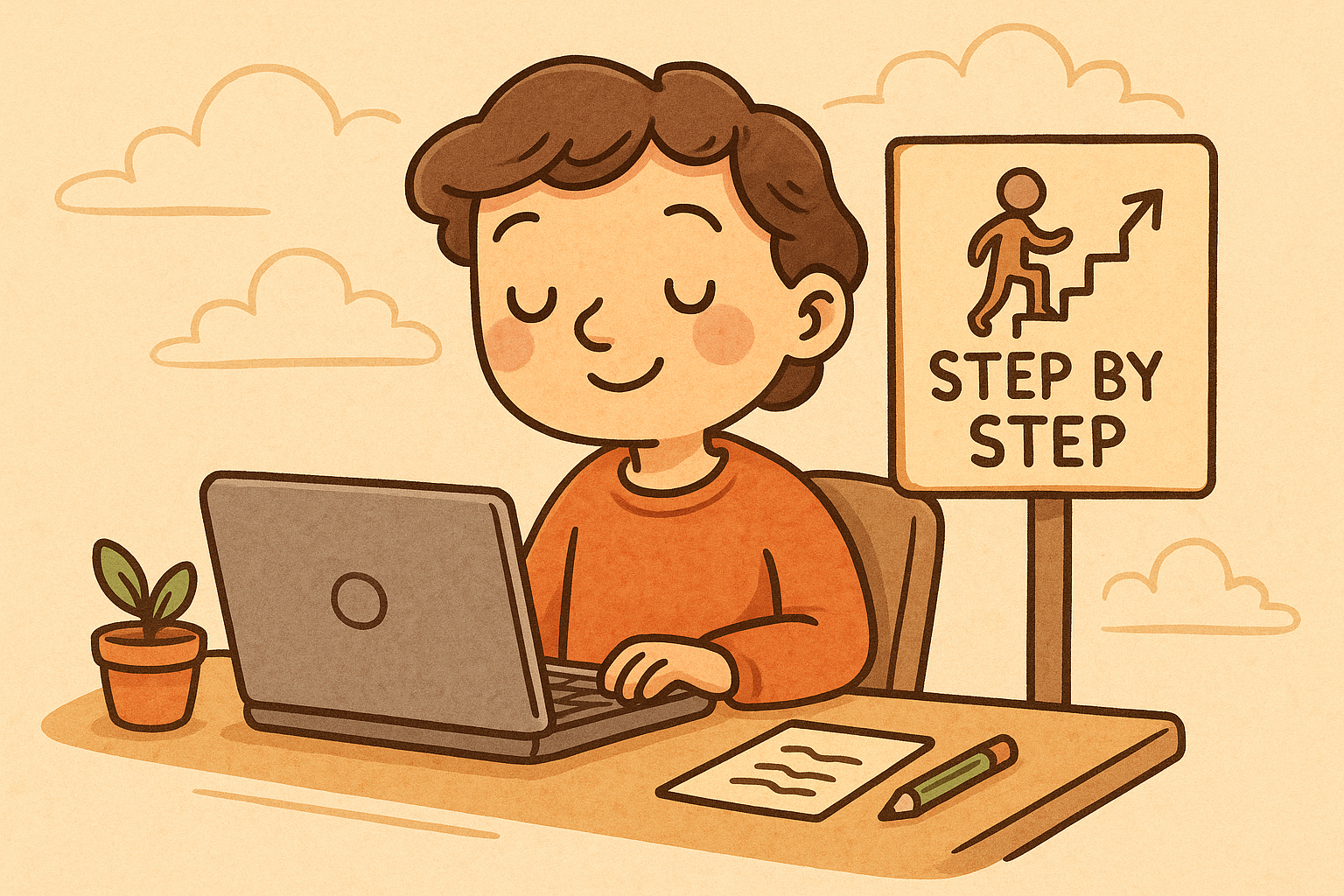
Learning to get online

Life has recently reminded me that moving slowly is okay. We don’t always have the energy to push hard or learn everything at once — and that’s true whether you’re grieving, healing, busy, or simply overwhelmed. So in this season, I’m simplifying things. I’ll be sharing smaller, step-by-step lessons that help you move forward one tiny bit at a time.

And tiny steps are enough. Truly.

Why Learning to Get Online Feels Overwhelming

Many beginners tell me the same thing:

“I don’t even know where to start.”

The online world can feel like a different language:

  • Buttons everywhere

  • Settings you’ve never seen before

  • Websites asking for passwords

  • New apps with icons you don’t recognize

You’re not confused because you’re “bad with technology.”
You’re confused because no one taught you yet.

If you’ve never been shown something, how could you possibly know how to do it? This is why learning to get online requires patience and a gentle step-by-step approach — not rushing, not comparing yourself to others, and definitely not giving up.

Simple Steps for Learning to Get Online

Let’s bring the focus back to simplicity.

You don’t need to learn everything all at once. In fact, you’ll learn quicker if you do less at a time, not more.

Here’s a practical approach you can try:

Step 1: Choose One Small Goal

Examples:

Do not try to learn multiple things at once.
Small goals lead to confidence.

Step 2: Repeat the Same Skill Several Times

Repetition is your friend.
It transforms “I don’t get it” into “Oh, I remember this.”

If you can:

  • Watch the same video again
  • Practice the same click pattern
  • Say the steps out loud

You’ll build your confidence much faster.

Step 3: Allow Mistakes — They’re Part of Learning

Mistakes don’t mean failure.
Mistakes mean you’re trying.

If something goes wrong:

  • Pause

  • Breathe

  • Try again slowly

Your brain likes repetition. Give it time to settle in.

You’re Not Behind — You’re Learning

People sometimes worry that they are “too slow” or “too old” to learn new technology.

But here’s the truth:

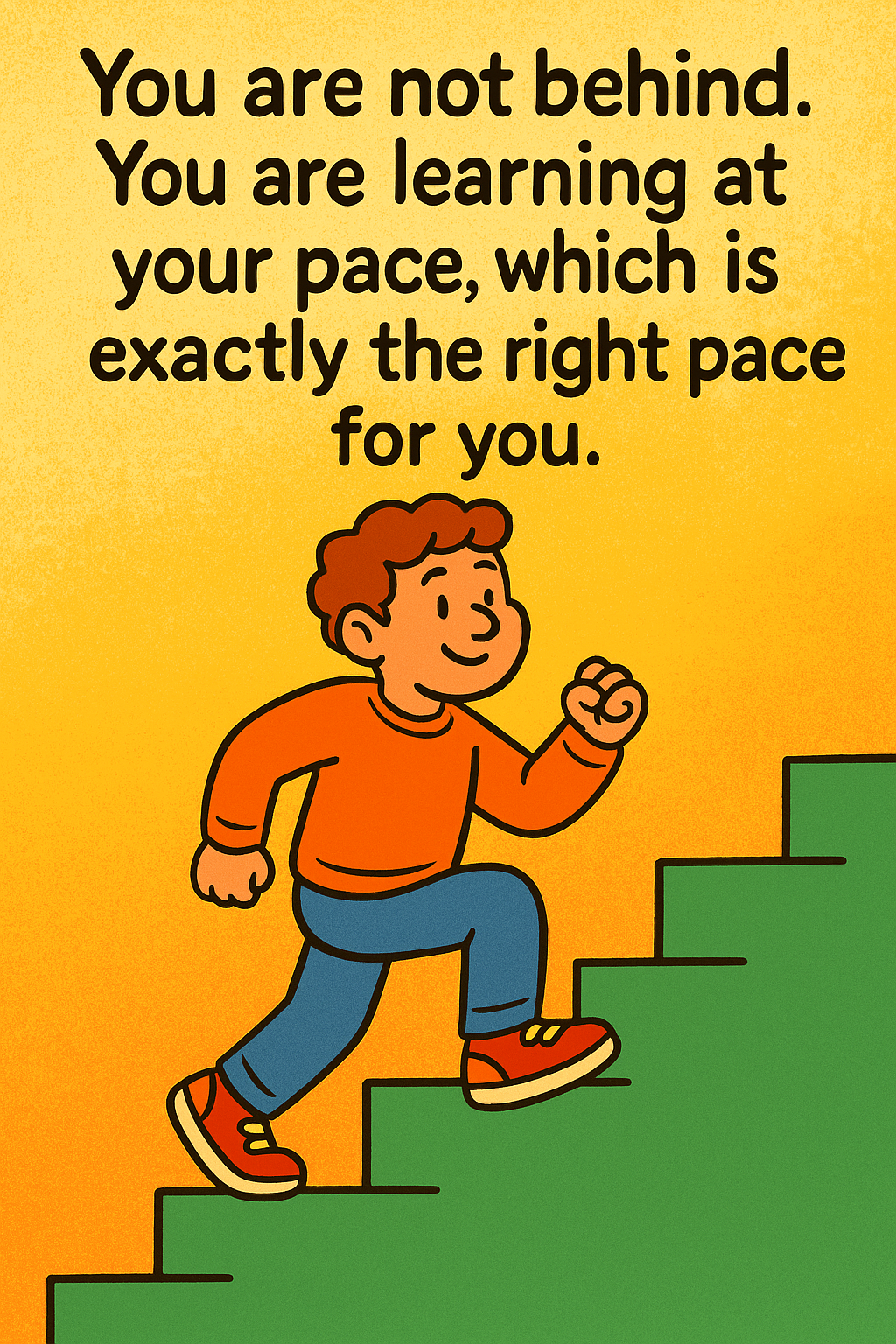
You are not behind. You are learning at your pace, which is exactly the right pace for you.

Everyone learns differently. Some people need to see things. Some need to hear instructions. Some learn best by doing. There is nothing wrong with the way you learn — you just need space, patience, and support.

If today all you learn is:

  • How to open a browser

  • How to type into a search bar

  • Or how to click something with confidence

That is real progress.

Learning at your own pace | learning to get online

How I’m Moving Forward With You

As I’ve shared, I’m moving slowly at the moment too. Life brought some emotional issues which it does sometimes doesn’t it?  I’m taking time to heal while still showing up in a gentle and steady way.

That’s why I’ll be posting:

  • One lesson at a time

  • Shorter and simpler tutorials

  • Clear step-by-step instructions

Not rushed.
Not overwhelming.
Just enough to help you keep going.

And we’ll walk this path together — step by step.

A Gentle Encouragement for You

You don’t have to understand everything today.

You don’t have to be confident yet.

You just have to keep going.

Learning to get online is a journey — and you’re already on the path.
And I’m right here walking it with you.

Tell me in the comments:

What is one small thing you would like to learn next?
It can be as simple as:

  • How to copy and paste

  • How to search for recipes online

  • How to make a password

  • How to save a photo

Your question will help me choose our next lesson.

You are doing better than you think.
Let’s keep going — one small, steady step at a time.

Here’s a little transparency: My website contains affiliate links. This means if you click and make a purchase, I may receive a small commission. Don’t worry, there’s no extra cost to you. It’s a simple way you can support my mission to bring you quality content.
How To Create a Strong Password You’ll Actually Remember

How To Create a Strong Password You’ll Actually Remember

Passwords are the keys to your online life — but many people still use ones that hackers can guess in seconds. A weak password can mean losing access to email, banking or your website. The good news? You don’t have to be ‘techy’ to fix this — here’s how

Let’s break it down step by step, with some clever memory tricks and simple tools anyone can use.  You will be learning how to create a strong password in no time at all

What Makes a Password Strong?

Good passwords are like strong doors. They’re hard to break, but easy for you to open.

A strong password should:

  • Be at least 12 characters long

  • Include a mix of letters, numbers, and symbols

  • Avoid anything guessable like names, birthdays, or “12345”

susan2023
Gr@peLemon$ky43!

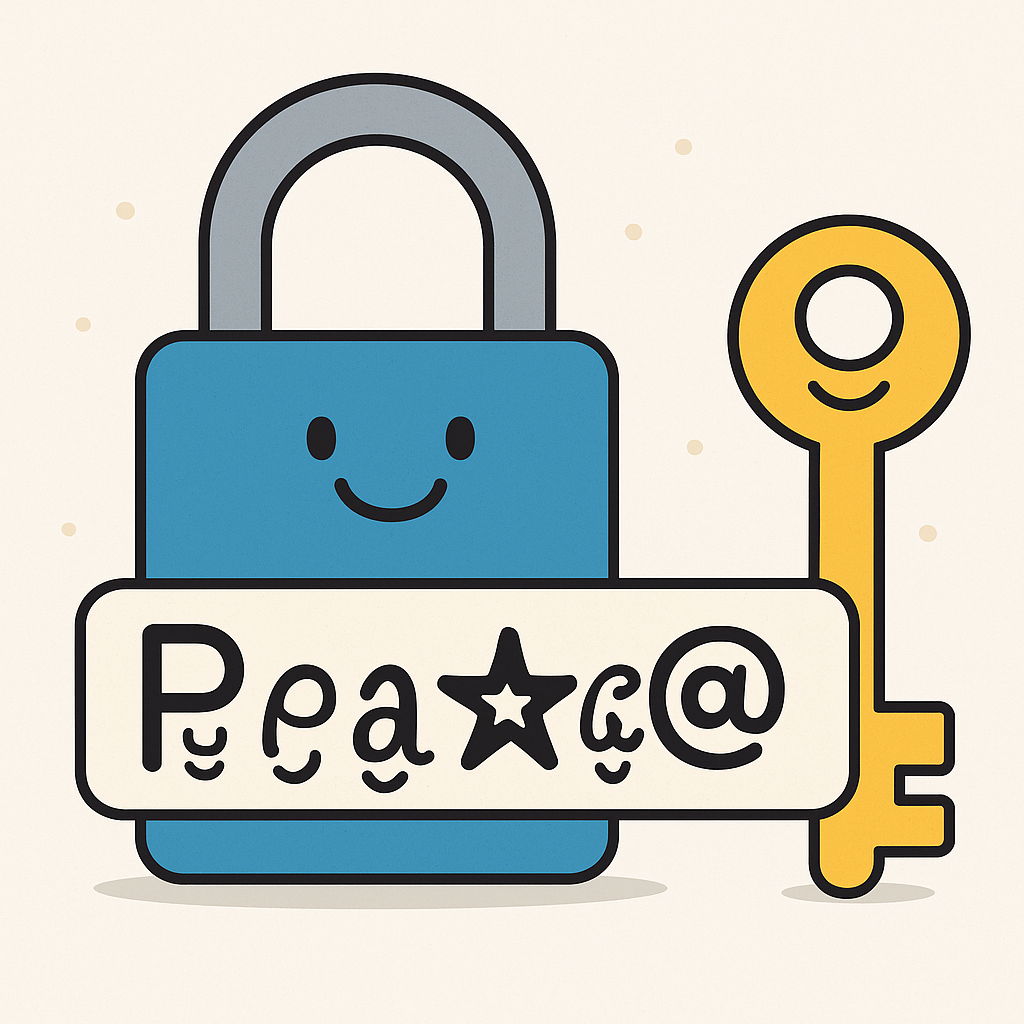
how to create a strong password| lock and key

Try This: A Sentence You Can Remember

Instead of a random string, turn a sentence into a password.

💡 Example:
“My dog barks at 7am every day!” → Mdb@7amED!

You remember the sentence — your password is strong, but personal.

Two Factor Authentication (2FA)

Even the best password can be stolen. Turning on Two-Factor Authentication (2FA) — where you get a code on your phone when you sign in — adds an extra lock to the door.

Use a Password Manager

If you are still worried you’ll forget? Use a tool to store them safely.

I have used LastPass for years and would be lost without it.

It saves your passwords securely and even fills them in for you.

Most password managers work across devices and offer free versions. Great for beginners who don’t want to write everything down!

What NOT to Do

Avoid these common mistakes:

  • Don’t reuse the same password for everything

  • Don’t store passwords in plain text on your computer

  • Don’t use anything someone could guess from your social media

FAQ

  • “How often should I change my password?”
    Only when you suspect a breach or a service asks — no need to change every month.

  • “Are password managers safe?”
    Yes, reputable ones encrypt your data — safer than reusing weak passwords.

  • “What’s the difference between a password and a passphrase?”
    A passphrase is a longer, memorable sentence — often stronger and easier to recall.

And Finally…

Creating a secure password doesn’t have to feel like solving a riddle.

Pick one of the tricks above and try it out for your most important account (like email). Once you’ve got the hang of it, you’ll feel far more confident online.

If you’re interested about keeping your website safe and secure read this

Got a tip or question about passwords? Drop a comment — I’d love to hear what’s worked for you!

My website contains affiliate links. This means if you click and make a purchase, I may receive a small commission. Don’t worry, there’s no extra cost to you. It’s a simple way you can support my mission to bring you quality content.
How To Search Google With Confidence

How To Search Google With Confidence

If you’ve ever typed something into Google and felt overwhelmed by the results — you’re not alone. With billions of pages out there, it can be hard to know what’s worth clicking. But searching smarter (not harder) makes a big difference.  Let’s walk through some simple ways to learn how to search Google and make it work for you.

Start With Better Keywords

Most people search by typing how they’d say something. But Google works best when you use keywords instead.

So, instead of  “What’s the best laptop for someone starting a blog in 2025?”
Try “Best laptop beginner blogger 2025”

Try keeping it short and focused:

  • Remove extra words

  • Use nouns and topic-related terms

  • Think about what words a website would use to describe what you want

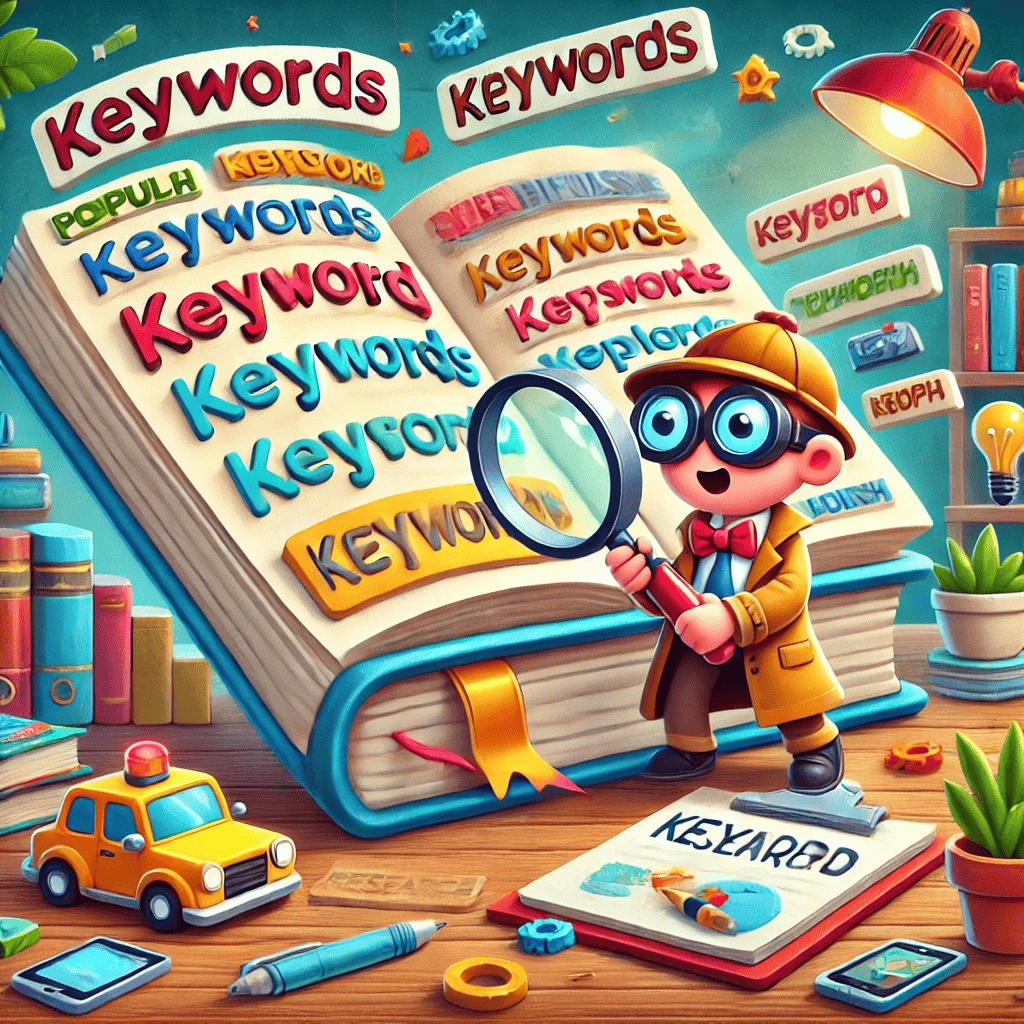
How To Search Google With Confidence| keywords

Use Quotation Marks to Find Exact Matches

If you’re looking for something very specific, put it in quotation marks.

For example:

“How to start a blog for beginners”


Google will only show results with that exact phrase. This is helpful if you’re searching for:

  • A book or course title

  • A name or brand

  • A specific quote or sentence

Add a Minus Sign to Remove Unwanted Results

Let’s say you want “apple” the fruit — not the tech company.
Just type:

apple -iphone -mac

That tells Google to exclude any pages that mention iPhone or Mac.

Find Trustworthy Websites

There’s a lot of information out there — but not all of it is helpful or safe.
Here’s how to spot reliable sources:

  • .gov and .edu sites are official (like government or schools)

  • Look for websites you recognise (like BBC, NHS, or well-known blogs)

  • Avoid sites with lots of ads, flashing banners, or hard-to-read layouts

  • If something feels “off,” trust your feeling. Close the tab!

how to search google with confidence| magnifying glass

Bonus Tricks

Try adding these to your search:

  • site:bbc.com (only shows results from the BBC)

  • filetype:pdf (only shows PDF downloads)

  • define:serif (asks Google to define a word)

Google has written this information which may help you if you need more help.  

And Finally…

With just a few small tricks, you can start searching smarter — and save a lot of time and stress.

Try one of these tips today and see how your results change.

What’s something you often search for online? Drop a comment below — maybe I can help you refine your search!

My website contains affiliate links. This means if you click and make a purchase, I may receive a small commission. Don’t worry, there’s no extra cost to you. It’s a simple way you can support my mission to bring you quality content.
How To Copy and Paste Online (Without Stress!)

How To Copy and Paste Online (Without Stress!)

To some people copying and pasting might seem simple, but if you’re just starting out online, it can feel like magic — or a mystery! Don’t worry. Today you’re going to learn how to copy and paste online like a pro — with zero stress.

Once you’ve mastered this basic skill, you’ll be able to:

  • Share links

  • Save important information

  • Move text around without retyping it

  • Fill in forms faster

Let’s take it step by step.

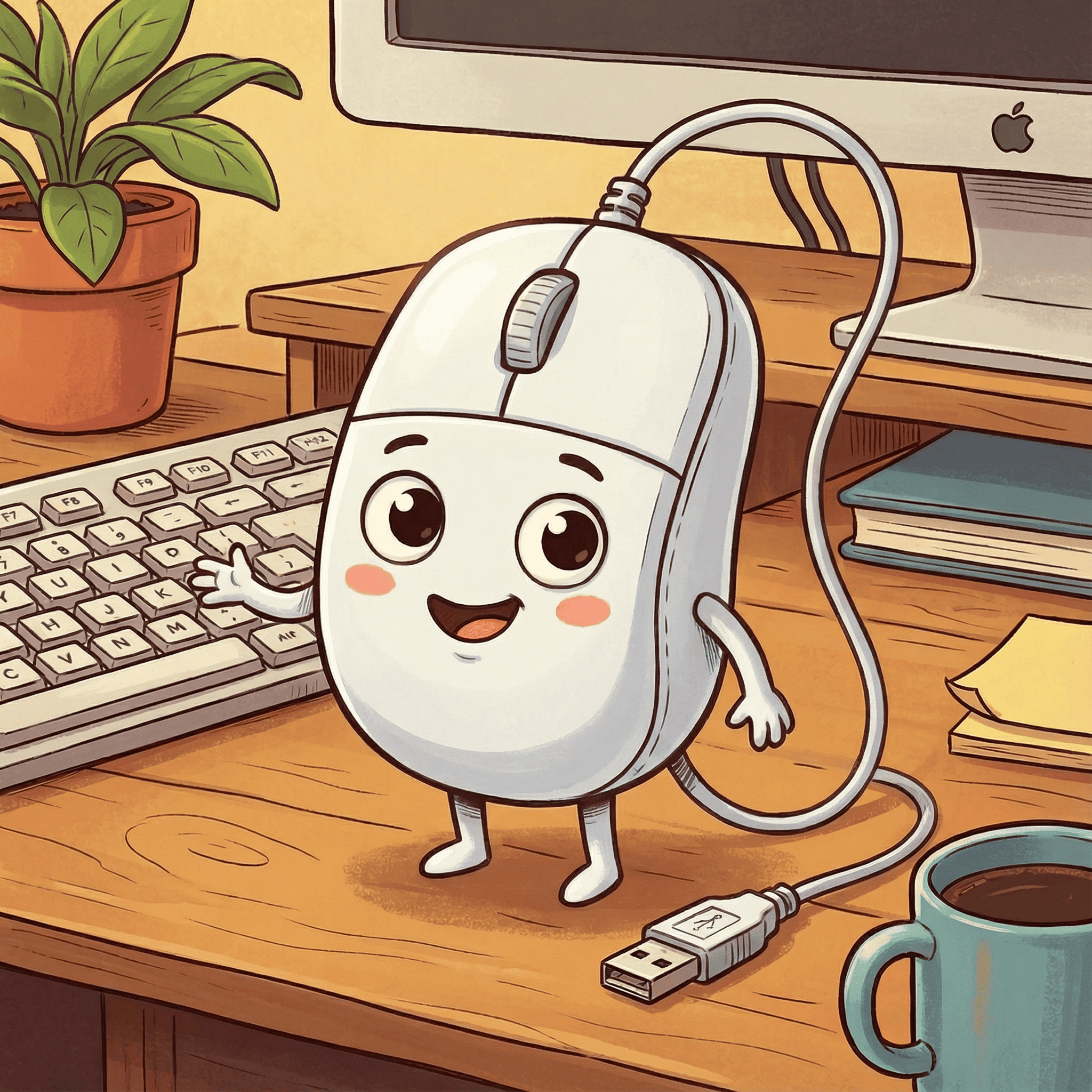
How :to Copy and Paste online | mouse

What Does “Copy and Paste” Mean?

Copying means taking a piece of text or an image and saving it temporarily.
Pasting means putting it somewhere else — like into an email, document, or message.

Think of it like picking up a sticky note and placing it somewhere new — the original stays where it is, but now you’ve got a copy in a second spot.

How To Copy and Paste Using a Mouse (On a Computer)

1.  Highlight the text
Click and drag your mouse over the words or link you want to copy. They’ll turn blue or grey (depending on your device).

2. Right-click on the highlighted area.

3. Select “Copy” from the pop-up menu.

4. Move to where you want to paste it (for example, an email or document).

5. Right-click again and select “Paste”.

Hey Presto, it’s Done!

How To Copy and Paste Using Keyboard Shortcuts

Once you’re confident, these keyboard shortcuts will save you time.

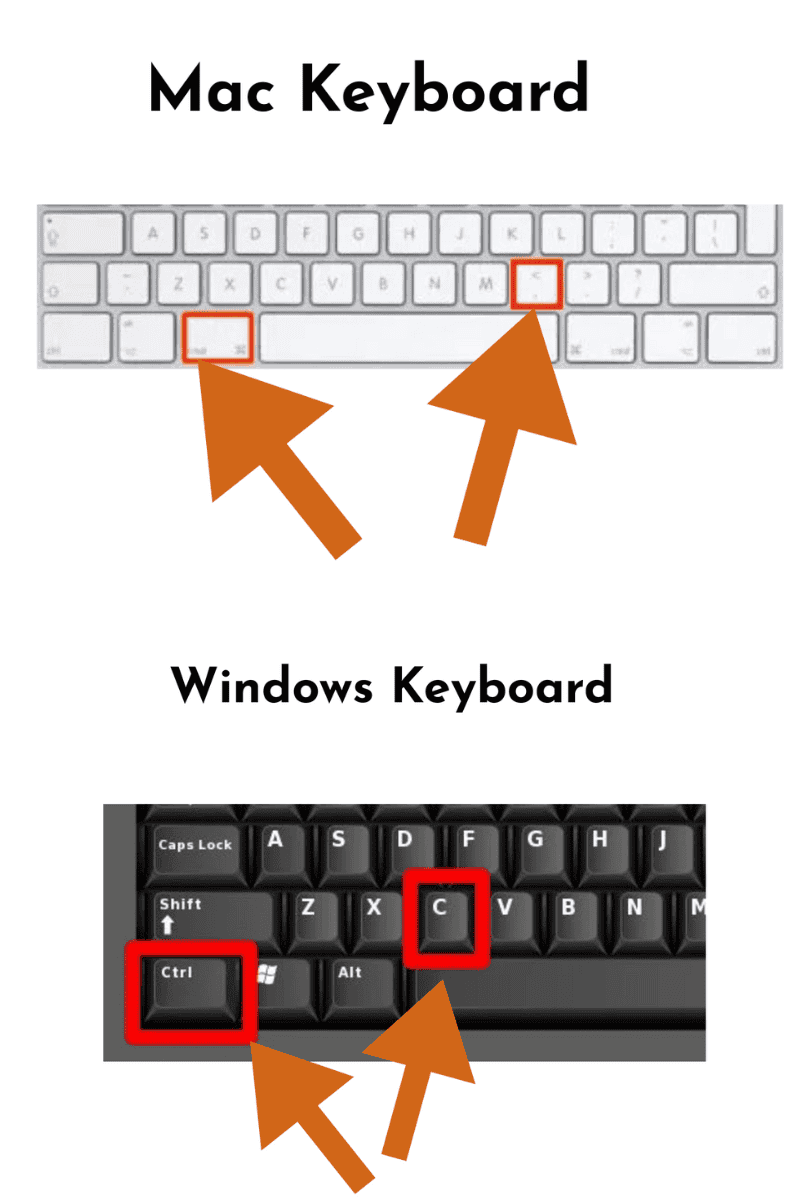
  • Ctrl + C (Windows) or Command + C (Mac) = Copy

  • Ctrl + V (Windows) or Command + V (Mac) = Paste

Just highlight the text, then press Ctrl+C to copy and Ctrl+V to paste it somewhere else.

how to copy and paste online | ctrcmd C

How To Copy and Paste On a Phone or Tablet

  • Tap and hold on a word until a menu pops up.

  • Drag the blue handles to highlight all the text you want.

  • Tap “Copy” from the pop-up options.

  • Go to the app or message where you want to paste.

  • Tap and hold in the text box, then tap “Paste”.

Tips To Practise Copy and Paste (Without Breaking Anything)

  • Try copying a sentence from a web page into a blank document.

  • Copy a web address (URL) from your browser and paste it into an email to a friend.

  • Practise copying and pasting your own name into a form or search bar.

Don’t worry — you can’t “break” anything by trying!

Common Places Where Copy and Paste is Useful

  • Filling in online forms

  • Sharing a website link

  • Saving a recipe

  • Copying a quote into a note

  • Transferring passwords (carefully!)

And Finally…

Copy and paste is one of those small things that opens big doors online. Once you know how, it becomes second nature.  The BBC has produced a beginners guide to getting online.  If you’d like to read it you can find it here 

Have a go, and let me know how it feels!
Was this post helpful?
Did the video make things clearer?

Leave a comment below or email me your questions — I reply to every one.

My website contains affiliate links. This means if you click and make a purchase, I may receive a small commission. Don’t worry, there’s no extra cost to you. It’s a simple way you can support my mission to bring you quality content.

My Wealthy Affiliate Review

My Wealthy Affiliate Review

If you’ve been researching how to build a genuine online business—perhaps by blogging, learning affiliate marketing, or simply exploring your own little corner of the web—then you’ve probably come across Wealthy Affiliate. It’s been around for years, and in fact, I’ve been a member (on and off) for over a decade.

I joined back in 2013, full of curiosity and a little overwhelmed by tech. And while my relationship with it has evolved over time, Wealthy Affiliate continues to support me today. I’d like to walk you through what it is, what it does well, and what to be aware of—especially if you’re midlife (or beyond) and stepping tentatively into this world.

Click here to explore the free Starter Plan now — and follow along with my review as you try it for yourself.

What Is Wealthy Affiliate?

Wealthy Affiliate (WA) is a learning platform, website builder, community, and digital toolbox — all in one place.

Here’s the basic overview:

  • Website: WealthyAffiliate.com

  • Founders: Kyle & Carson (since 2005)

  • Community size: Over 2.9 million users

  • Free Starter Plan: Yes — no card details needed

With WA, you can:

  • Build a website step by step

  • Learn blogging, SEO, and affiliate marketing

  • Research topics with built-in tools

  • Get support from a huge, active community

Start with the free Starter Plan here.

What Wealthy Affiliate Does Well

Training That Builds Confidence

The core training takes you from zero to “I’ve built something real” in four calm stages:

  • Picking your niche (even if you feel unsure)
  • Registering a domain & launching your site
  • Creating helpful content
  • Growing traffic & adding monetisation

Each lesson is short and hands-on. You’re building as you learn — not just watching videos.

The training is kept up to date (in fact today, the whole site has gone through a massive and exciting transformation)—if Google changes something or there’s a better way to handle SEO, the curriculum reflects it. You won’t be stuck following advice from ten years ago.

Live Classes & Weekly Workshops

  • Over 350 classes each year

  • Cover SEO, email lists, content planning, niche ideas

  • Run by people actively building businesses (not just talking theory)

  • All recorded so you can watch later

I have to mention Jay’s training — it’s consistently inspiring and practical.  In case he is reading – Jay, you are my hero.

Jays training

Built-In Tools (Including Jaaxy)

  • Keyword research made simple

  • Topic ideas based on real searches

  • Track your rankings

  • Affiliate program finder (saves hours of Googling)

  • AI writing tools

Supportive Community

This is one of my favourite parts:

  • Quick, thoughtful answers when you’re stuck

  • Encouragement when you wobble

  • Feedback on your site, step by step

It’s a kind space. No snobbery, just lovely people helping each other and laughing together.

Hosting & Technical Help

Included even on the free plan:

  • Fast, secure WordPress hosting

  • Free SSL

  • Daily backups

  • Spam protection

  • 24/7 support (very responsive — often within minutes)

What To Be Aware Of (Honest Bits)

  • It takes patience. Results don’t come overnight.

  • It’s a big community. Friendly, but it can feel busy at first.

  • Not for everyone. If you want fast cash or prefer hustle-style business building, WA won’t suit.

But if you value calm, structured teaching and want tools + training in one place, it’s a strong fit.

My Own Results

I made my first affiliate commissions within my first year. They weren’t life-changing — but they were real, steady, and built my confidence. Over time, it’s become a modest but meaningful income stream.

And importantly: I learned the skills to build something that lasts.

Click here to explore the free Starter Plan— you can try it, build your first site, and see if it feels right for you.

Who Wealthy Affiliate Is For

Beginners who want a clear, step-by-step path

Midlife learners who prefer a calm, jargon-free approach

People who like having training, tools, and community in one place

Anyone who wants to build something steady and lasting

❌ It’s not for people who want “overnight success” or don’t want to put time in.

What It’s Like to Use Wealthy Affiliate

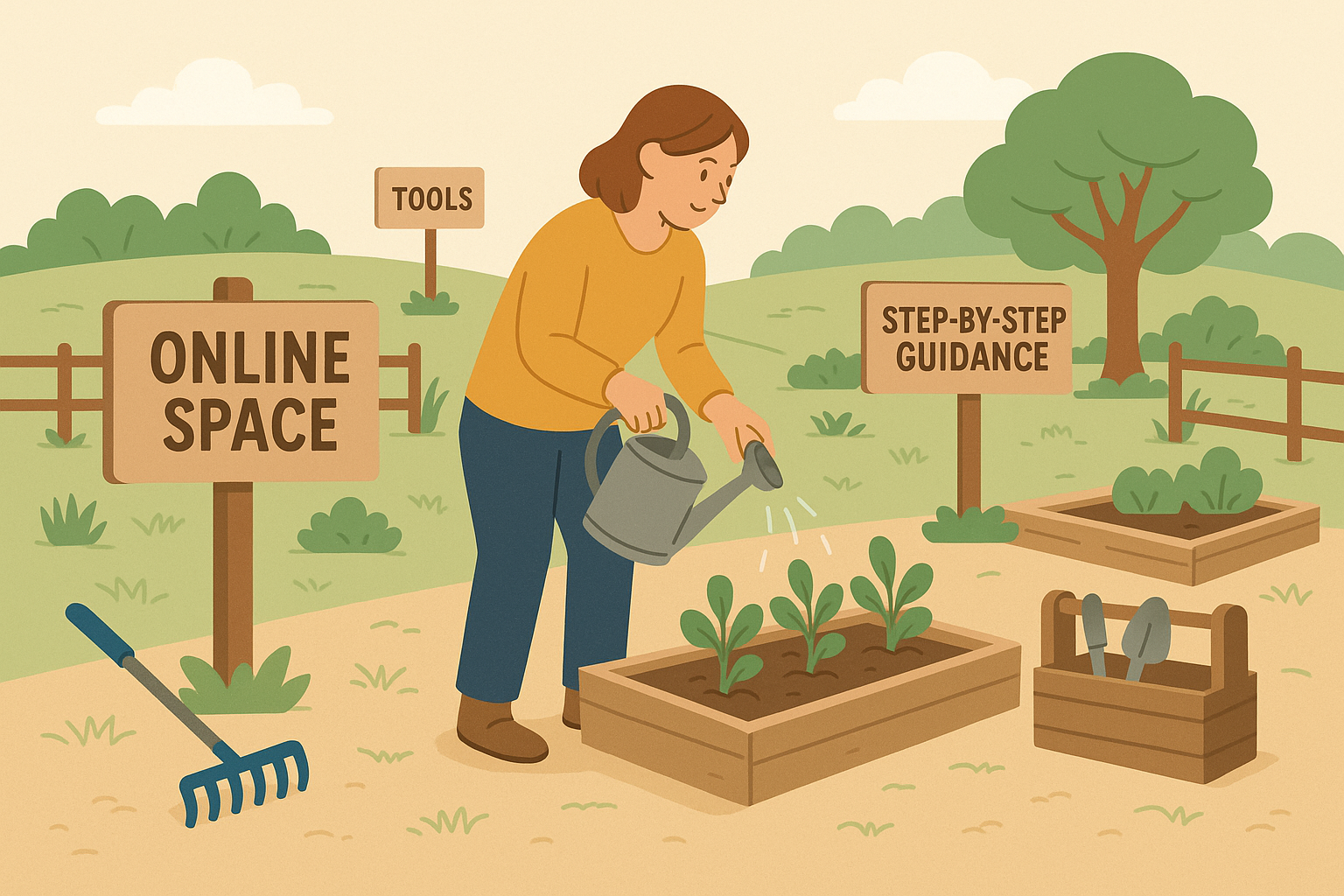
Think of it like an allotment: you get your own patch of online space, the tools to care for it, and step-by-step guidance from people who’ve been tending their plots for years.

You start with choosing your topic or “niche” (they help with this), setting up a basic WordPress site, and then learning how to create content that helps people—and earns you income over time through affiliate links.  You are supported every step of the way.

Online space like an allotment

The Founders (And Why That Matters)

Kyle and Carson, the co-founders, are still very active inside WA. They started the platform in 2005, and you’ll often see them running classes or replying to questions.  They are often available in ‘Live Chat’.  It’s unusual to see that level of founder presence, especially after nearly 20 years.

When I first joined, it was lovely to be able to message them directly (and often)—and I still do occasionally. They’re not just figureheads. They’re part of the rhythm of the community.

wealthy affiliate going up 1

Is It a Pyramid Scheme?

No. This isn’t one of those setups where you have to recruit others to earn anything.

Yes, Wealthy Affiliate has an affiliate program—but most people in the community build sites in other areas. (In fact, it’s one of the only platforms I’ve seen that encourages you to promote something besides itself.)

It’s focused on teaching skills you can apply in any niche.

Frequently Asked Questions

Is Wealthy Affiliate suitable for complete beginners?


Yes. The platform is designed to walk you through each step — from choosing a niche to building your first website. If you’re comfortable with email and basic browsing, you can learn this too.

Do I need to buy anything straight away?


No. Wealthy Affiliate offers a free starter plan with no credit card required. You can explore the training and see if it feels right before deciding on anything further.

Can I build a website even if I’m not ‘techy’?


Absolutely. The tools are simplified and well explained. Plus, the community is friendly and helpful when questions come up. It’s one step at a time — no tech fluency required.

Will it help me earn money?


It can — but not overnight. Like anything real, results depend on the time and care you put in. WA gives you the tools and guidance, but it’s not a push-button solution. It rewards steady effort.

And Finally...

If you’ve ever said to yourself:

“I’d love to build a site but don’t know where to start,” or

“I don’t want to do this alone,”

then Wealthy Affiliate is worth trying.

You can start completely free, explore the tools, poke around the community, and only upgrade if and when it feels right.

I still use WA after all these years—because it works, it evolves, and it suits the way I learn.

Click here to explore the Starter Plan (free)

If you join and want to say hello, I’m inside the community and always happy to connect. Let me know if you need help.

Here’s to building something steady—and truly yours.

The Benefits of Aging

The Benefits of Aging

Age is one of those numbers people often panic over, but in reality, it holds a quiet kind of power. There’s this tired myth that aging is all about decline — but let’s flip the script. The benefits of aging are real, rich, and often overlooked. Think of age as a collection of life experiences — a treasure chest of lessons, stories, and strengths.

Who’s better equipped to handle life’s unpredictability than someone who’s lived a lot of it?

Man on his birthday not realising the benefits of aging

Breaking the “Too Late” Myth

We hear it all the time: “It’s too late for me,” or “That ship has sailed.” But that’s just not true. In fact, it’s one of the biggest lies society tells — that the older you get, the less you have to offer.

Take Colonel Sanders, who started KFC at 62. Or Grandma Moses, who began painting in her late 70s. These aren’t exceptions — they’re reminders. Starting later in life doesn’t make your success less valid. It makes it richer.

The Benefits of Aging Go Beyond Wisdom

The benefits of aging aren’t just about knowledge — though that’s a big part of it. It’s also about resilience, clarity, and confidence that only time can bring.

Think about it:

  • You’ve seen trends come and go — and learned what truly matters.

  • You know how to solve problems by thinking ahead, not just reacting.

  • You’re likely calmer under pressure — because you’ve been there before.

And that inner strength? That’s something younger versions of ourselves only dream of having.

Experience Is a Superpower (Not a Limitation)

Over time, we develop a kind of “life literacy.” You can see patterns, spot red flags, and connect dots that others miss.

You’ve built this toolkit from years of living, working, trying, failing, and trying again. That’s not just valuable — it’s irreplaceable.

Adaptability is another unsung benefit.

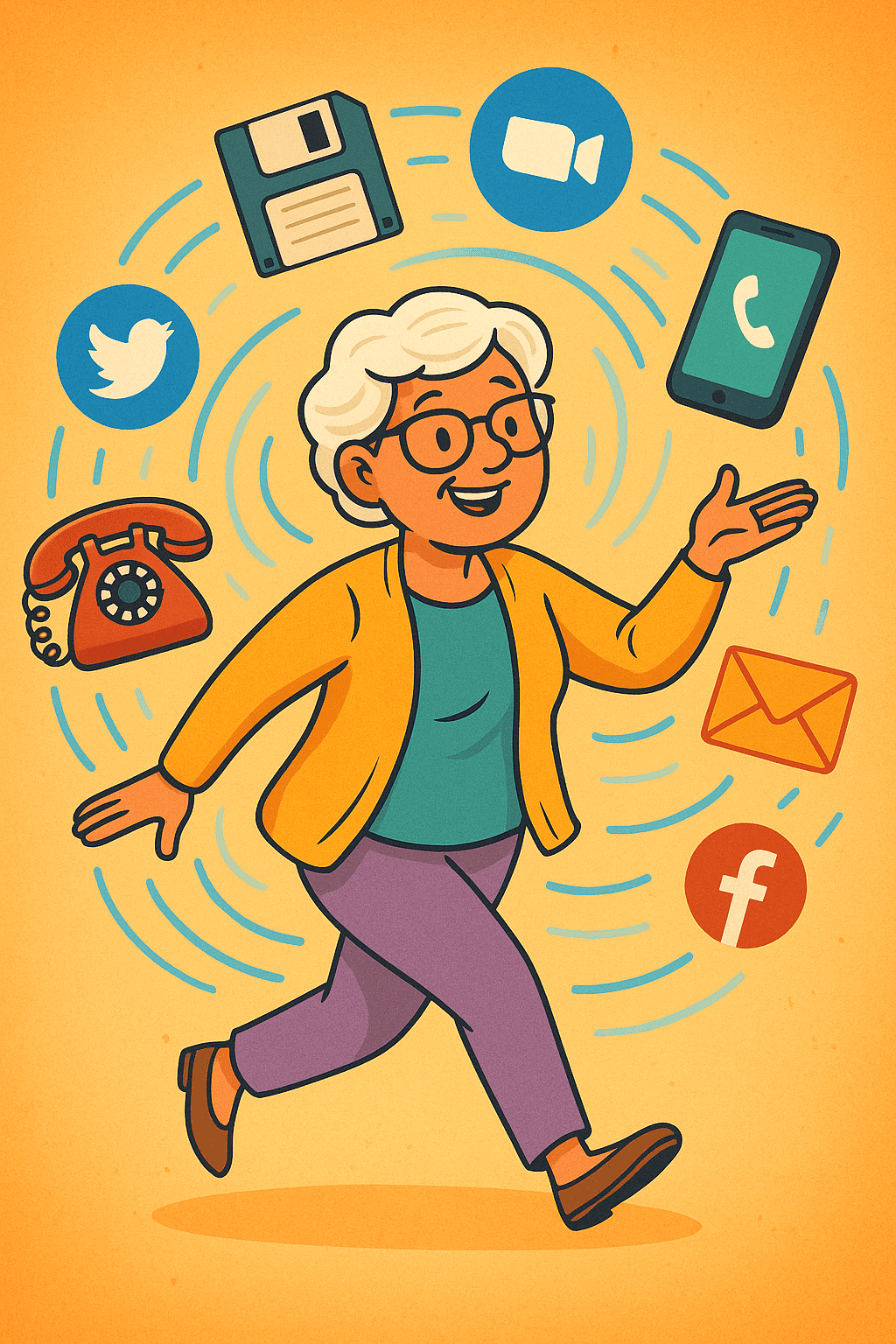
You’ve adjusted to changing times — from the internet to mobile phones to smartphones, handwritten letters to Zoom calls. You’ve grown with the world, and that flexibility is pure gold.

Older lady happy working with technology and knowing the benefits of aging

Passing It On: Sharing What You’ve Gained

One of the most powerful things about growing older is the ability to give back — not just with time, but with insight.

Mentoring, volunteering, guiding others — these aren’t just kind gestures. They’re meaningful ways to shape the future. Younger people aren’t just looking for facts — they’re looking for wisdom. And your story? It’s part of that.

The Modern World Needs Your Experience

This fast-paced, tech-filled world might feel intimidating at times, but it actually needs voices like yours.

More companies are valuing age diversity. They understand that real insight comes from experience. Strategic thinking, emotional intelligence, big-picture planning — these aren’t things you learn in a crash course. They come from life.

Whether it’s starting a new project, launching a blog, or sharing your journey, this is your time. The benefits of aging include having the clarity to know what you want — and the courage to go after it.

And if you’re thinking of building something online? A platform like Wealthy Affiliate is perfect for any age. It’s welcoming, beginner-friendly, and full of people rewriting the story of what’s possible.

And Finally...

You’ve lived through change. You’ve handled challenges. You’ve built up wisdom that no online search can replicate. That’s powerful — and it’s shareable.

The benefits of aging aren’t just internal. They ripple outward. They influence families, communities, and whole industries.

So don’t shrink back — lean in. Own your story.
And if you’ve felt your age as a superpower lately, I’d love to hear about it in the comments. Let’s celebrate what we bring to the table.

Here’s a little transparency: My website contains affiliate links. This means if you click and make a purchase, I may receive a small commission. Don’t worry, there’s no extra cost to you. It’s a simple way you can support my mission to bring you quality content.